Halloween Classroom Games: Shared-Screen Session Plan
Plan turns and test the provider frame on the actual classroom device.
Set up a shared-screen round
- Preview the provider frame on the actual school device and network. Review its content, ads, sound and outside links under your school’s policy.
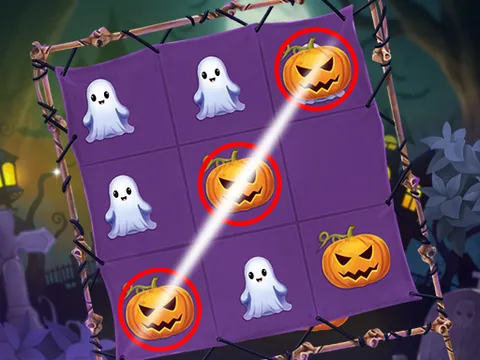
- Choose the game input. For the observed two-player Tic Tac Toe build, two teams can nominate alternating squares while one operator enters each choice. This is a suggested classroom arrangement, not a network multiplayer feature.
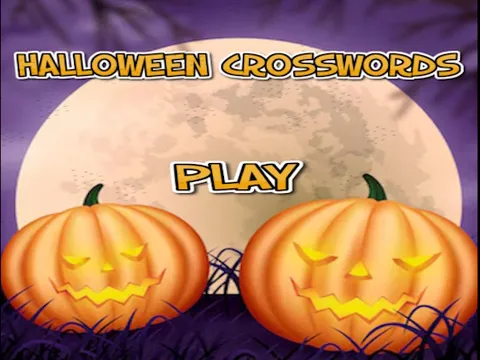
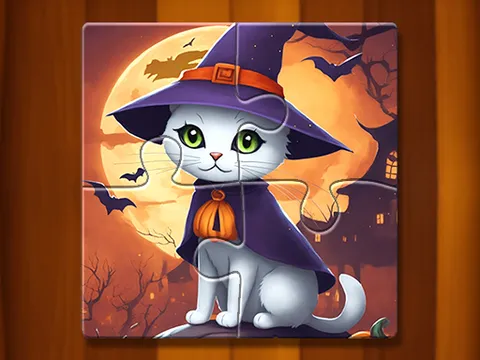
- Agree when a turn ends. For a crossword, one group can propose a clue answer before the operator enters it. For a jigsaw, groups can point out a piece and destination rather than crowding one mouse.
- Finish at a visible board result or your own agreed stopping point. Stop game unloads the frame; do not assume a round will be saved for the next class.
Test the part that matters
A projector that displays the menu does not prove small crossword text is readable from the back of the room. A mouse-controlled puzzle does not prove it works with a classroom touch display. Try the intended interaction and check the displayed timer before starting the group activity.
Keep the boundaries clear
The directory has no student account form. Embedded games are separate services and can send requests, show advertising or use storage. This page is not an approval for collecting student data or an age certification. If a frame is unavailable or unsuitable, stop it and choose another activity.